The process of making technical diagrams can consume a lot of time and effort. No matter if you are an engineer who is mapping out the architecture of a system, a programmer who is demonstrating database relations, or a manager who is planning and mapping workflows, the classic diagramming methods are usually unable to keep up with your pace. But what if an AI could create the same professional diagrams in just a matter of seconds?
Let’s look at Eraser.io and its most important feature, DiagramGPT. This tool made with AI technology for the diagramming of a very complex nature is the one that is going to change the way technical teams create diagrams, as it is using natural language prompts or code to generate diagrams in no time. To give you a comprehensive review of the Eraser.io tool in 2026, I have done extensive testing of the Eraser.io tool and have also dug deep into its features for you.
Using this tool? Got questions?
Ask me anything on Telegram - free honest answers before you spend your money.
So, if you’re wondering whether Eraser.io is the right AI diagram tool for your needs, read this article until the end! Let’s dive right in to discover everything about this innovative platform.
Quick Summary
This article is my complete review of Eraser.io and its AI tool DiagramGPT. I personally tested all 13 AI diagram generators available on the platform. In this review, I explain what Eraser.io is, how DiagramGPT works, and how well each tool performed in real use. You will see my honest experience, ratings, pros and cons, pricing details, and who should use this tool. If you want to know whether Eraser.io is the right AI diagram tool for developers, teams, or businesses in 2026, this summary will help you quickly understand what the full article covers.
Disclaimer: I strongly believe in transparency. This review is based on independent testing and research. Eraser.io did not sponsor this review, and all opinions are my own based on hands-on experience with the platform.
What is Eraser.io?
Eraser.io is an all-encompassing AI-driven platform that aims at engineers exclusively to produce technical documents and diagrams. It merges a collaborative whiteboard, diagram-as-code feature, and advanced AI capabilities using OpenAI’s GPT-4 to make the whole technical design procedure quicker.
Eraser.io is a professional tool for technical users, in contrast to Lucidchart or Visio, which are classic diagramming tools. It knows engineering jargon, connects to GitHub, and lets the team make documentation that changes along with their codebase.
The software provides a single space where pictures and written notes in markdown form live together. Thus, the team is able to prepare in-depth technical documentation with no switching over to different applications.
What is DiagramGPT?
At the core of Eraser.io lies the AI-driven diagram creator called DiagramGPT. Utilizing OpenAI’s GPT-4, DiagramGPT is capable of producing high-quality technical diagrams in a matter of seconds, based either on straightforward natural language suggestions or on code inputs.
To illustrate, just by writing “Make a microservices architecture diagram with API gateway, an authentication service, and a database,” you will see that DiagramGPT will create a whole, modifiable diagram right away.
DiagramGPT currently supports four main diagram types:
- Flowcharts – Visualize processes and workflows
- Entity Relationship Diagrams (ERD) – Design database schemas
- Cloud Architecture Diagrams – Plan cloud infrastructure
- Sequence Diagrams – Map out system interactions
All diagrams generated by DiagramGPT are rendered in Eraser’s diagram-as-code format, meaning you can edit them using either code syntax or the visual interface.
Key Features of Eraser.io
1. AI-Powered Diagram Generation
Generate complex diagrams from natural language descriptions or paste in existing code (SQL, Terraform, etc.) to create instant visualizations.
2. Diagram-as-Code
Create and edit diagrams using code syntax, enabling version control, automation, and consistency across your documentation.
3. Multiple Input Methods
- Natural language prompts
- Code snippets (SQL schemas, Infrastructure as Code)
- Images (convert existing diagrams to editable format)
- Manual drag-and-drop editing
4. GitHub Integration
Connect your repository to automatically generate and update diagrams based on your codebase. Changes in your code can automatically reflect in your diagrams.
5. Real-Time Collaboration
Multiple team members can work simultaneously on the same canvas, with changes syncing in real-time.
6. Markdown Documentation
Combine diagrams with markdown notes for comprehensive technical documentation all in one place.
7. Version History
Track changes with automatic snapshots, allowing easy rollback to previous versions.
8. Templates and Presets
Access a library of templates and presets to quickly start common diagram types.
9. Export Options
Export diagrams in multiple formats, including PNG, SVG, and PDF, for presentations and documentation.
10. API Access
Professional and Enterprise plans include API access for automated diagram generation.
Get diagrams from the repo layout – refresh them once the code gets tweaked.
My Complete Testing Experience – 13 AI Diagram Generators
AI Flowchart Generator
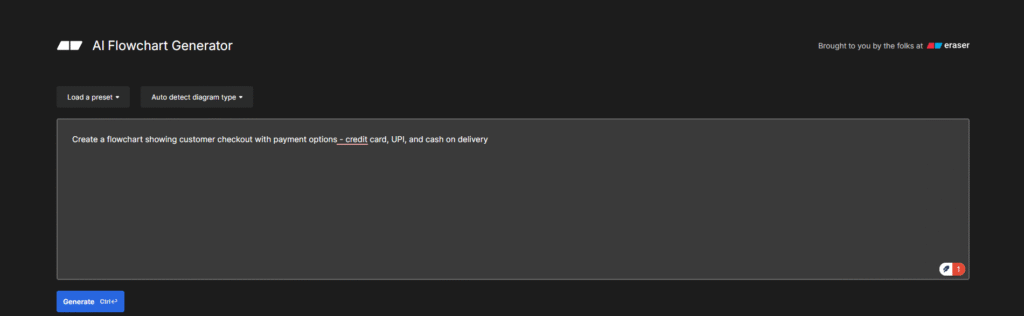
What I Tried: I needed a flowchart for my online store’s checkout process, so I typed: “Create a flowchart showing customer checkout with payment options – credit card, UPI, and cash on delivery.”
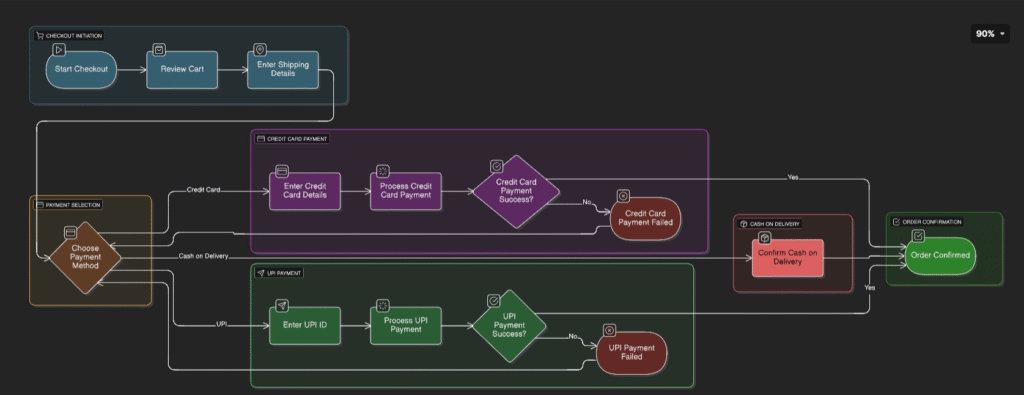
My Experience: When I used this flowchart maker AI, I was honestly amazed! Within 5 seconds, it created a complete flowchart. I didn’t have to draw anything manually. The flowchart generator understood that I needed decision points like “Payment method selected?” and automatically added diamond shapes for decisions and rectangles for processes.
What I really liked was how the AI flowchart maker added proper arrows showing the flow. It even labeled them clearly – “If Credit Card → Verify Card Details” and “If COD → Confirm Address.” I’ve used other flowchart tools before that took me 30 minutes to make something similar to. This did it instantly!
Output:
My Rating: 9.5/10
I’m definitely using this for all my process documentation.
When I’ll Use This Again:
- Planning my app features
- Explaining processes to my team
- Creating user journey flows
- Making decision trees for customer support
AI Mermaid Diagram Editor
What I Tried:
I told it, “Show me a Mermaid diagram for my GitHub workflow from pushing code to deployment on server.”
My Experience:
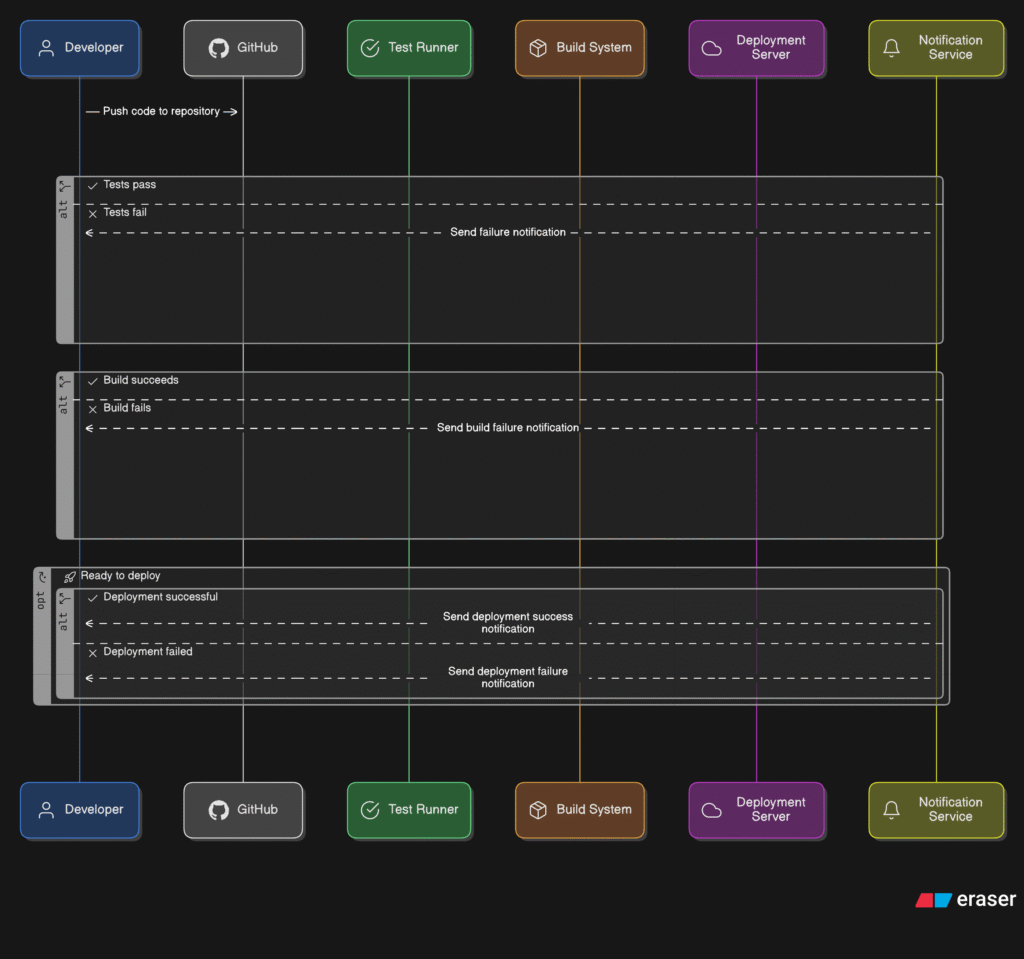
As someone who works with code daily, this Mermaid AI tool is a lifesaver! I love Mermaid because I can put Mermaid diagrams directly in my GitHub README files. Before this, I had to manually write Mermaid syntax, which was tedious.
I just described my workflow in plain English, and boom – it gave me perfect Mermaid code! The mermaid flowchart showed: Push Code → GitHub Actions → Run Tests → Build Docker Image → Deploy to AWS. And the best part? The mermaid diagram syntax was clean and ready to copy-paste into my markdown files.
I tested it with another prompt about database relationships, and again, the mermaid diagrams came out perfectly formatted. This is now my go-to tool for documentation.
My Rating: 10/10
Exactly what I needed as a developer
When I’ll Use This Again:
- All my GitHub project documentation
- Technical blog posts
- Team wiki pages
- Code review explanations
AI Architecture Diagram Generator
What I Tried: “Create an architecture diagram for my food delivery app with a React Native frontend, Node.js backend, MongoDB database, and AWS cloud services.”
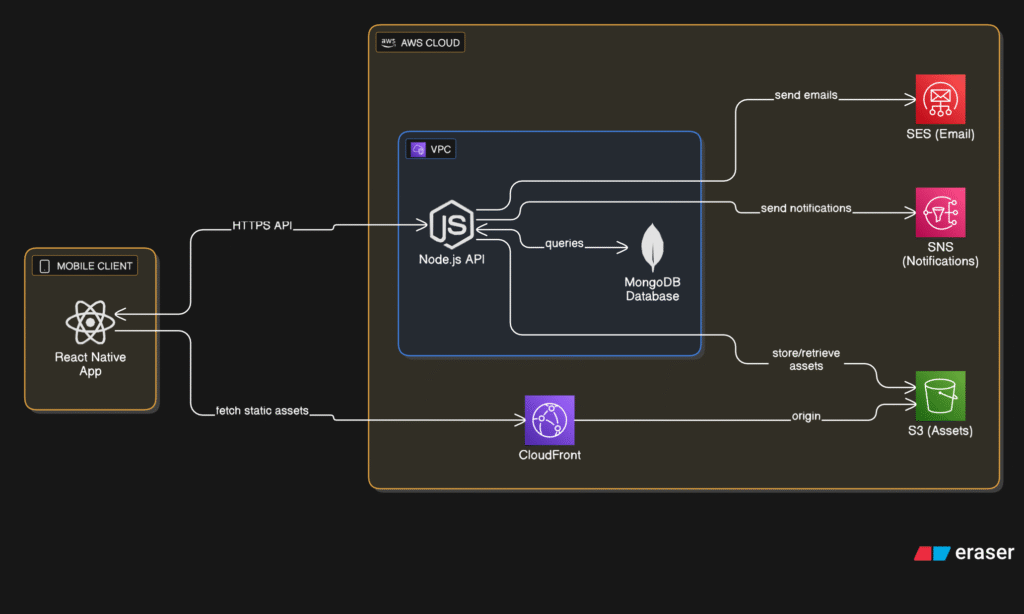
My Experience: Okay, this AI architecture diagram generator blew my mind! I’ve spent hours in the past using draw.io and Lucidchart to create architecture diagrams. This tool understood my entire system architecture immediately.
It created layers automatically: the frontend layer, the API layer, the service layer, and the database layer. The architecture diagram generator even added components I didn’t mention, like load balancer and Redis cache, because it understood they’d be needed for a food delivery app. Smart!
What impressed me most was that this free AI software architecture generator tool (yes, FREE!) gave me results better than paid tools. It used proper AWS icons, showed data flow with arrows, and even color-coded different services.
I shared this with my team lead, and he was shocked. He said, “This would’ve taken you 2 hours to make manually!” Now we’re using it for all our system design discussions.
My Rating: 10/10
Best architecture tool I’ve ever used
When I’ll Use This Again:
- Client presentations
- System design interviews
- Project proposals
- Team architecture reviews
- Documentation for new joiners
AI Use Case Diagram Generator
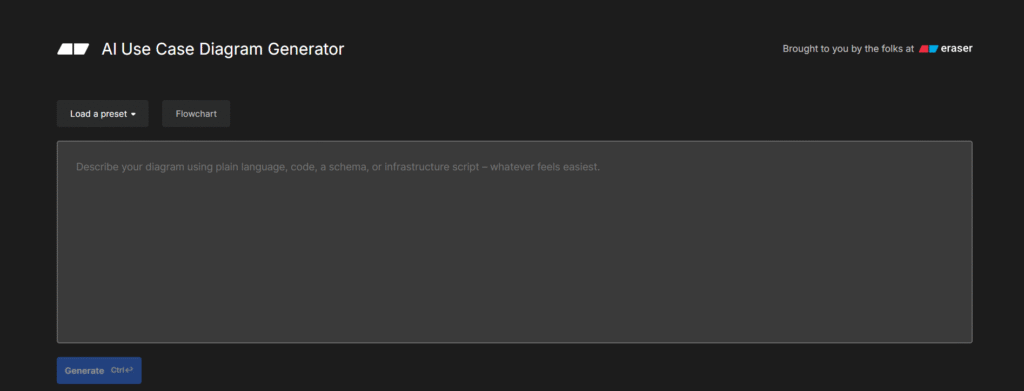
What I Tried:
“Generate a use case diagram for my freelance project management system with clients, freelancers, and admin.”
My Experience:
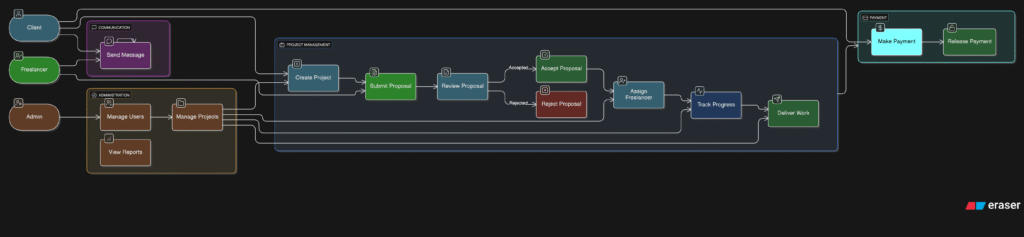
I’m working on a project management tool, and I needed to document all user interactions. The use case diagram generator AI made this so simple! I just listed out who uses my system and what they do.
The use case diagram creator automatically created stick figures for actors (client, freelancer, admin) and ovals for use cases (post project, submit proposal, approve payment, etc.). What’s cool is it understood the relationships – like “Client extends to Guest User” for registration flow.
Before this, I was struggling to explain to my client what features each user type would have. Now I just show them this case diagram,0 and everything is crystal clear. Even my non-technical client understood immediately!
My Rating: 9/10
Super helpful for requirement gathering
When I’ll Use This Again:
- Client requirement meetings
- Feature planning sessions
- User story mapping
- Stakeholder presentations
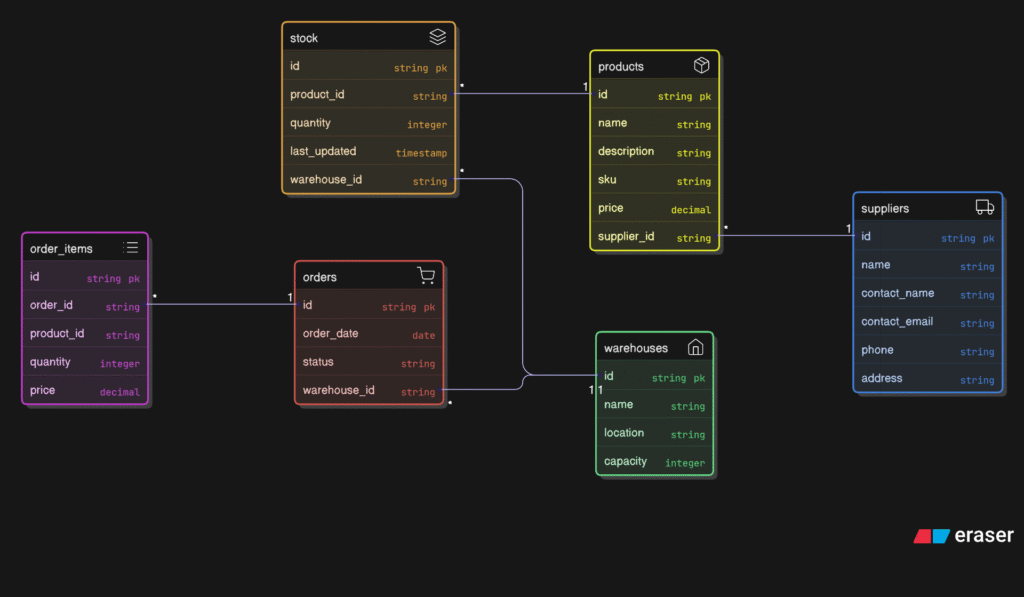
AI UML Diagram Generator
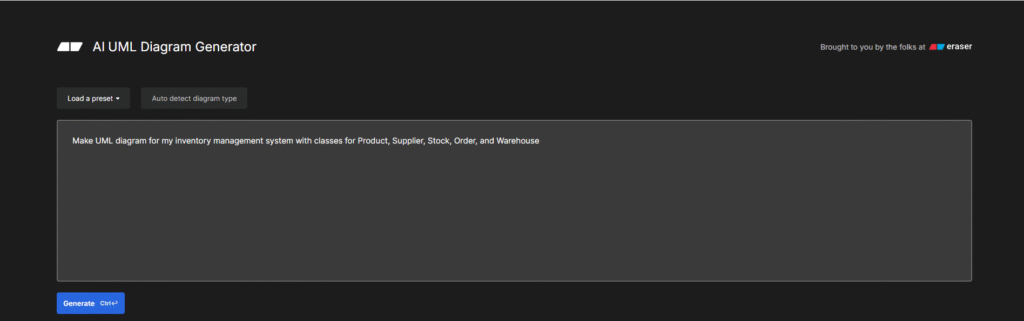
What I Tried: “Make UML diagram for my inventory management system with classes for Product, Supplier, Stock, Order, and Warehouse.”
My Experience:
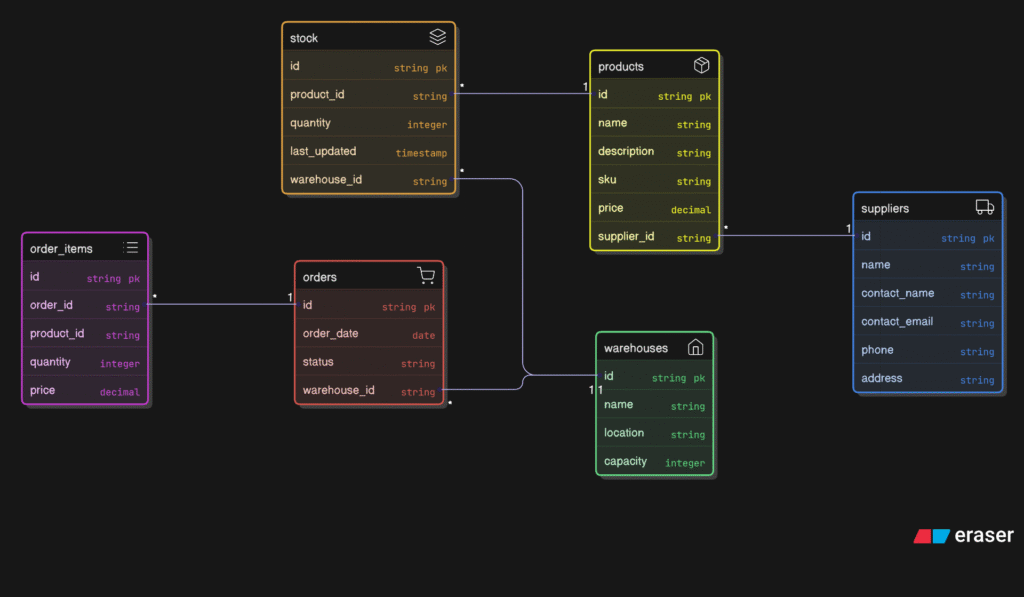
As a backend developer, I plan my classes before coding. This AI UML diagram generator is now essential for me! I described my system classes, and it created a complete UML class diagram with attributes, methods, and relationships.
The UML diagram maker understood the following:
- Product has properties like name, price, SKU
- Warehouse “contains many” Products (one-to-many relationship)
- Order “references many” Products (many-to-many relationship)
It even added methods I hadn’t thought of! Like the product. checkAvailability() and Warehouse.transferStock(). The UML diagram generator basically helped me design better code!
I tested it with inheritance scenarios too – like “Vehicle is the parent class, and Car and Bike are child classes” – and it perfectly showed the inheritance arrows. This makes my code reviews much easier because my team can see the class structure visually.
My Rating: 9/10
Makes OOP design so much easier
When I’ll Use This Again:
- Before starting any new feature
- Code review sessions
- Teaching junior developers
- Database schema planning
- Refactoring discussions
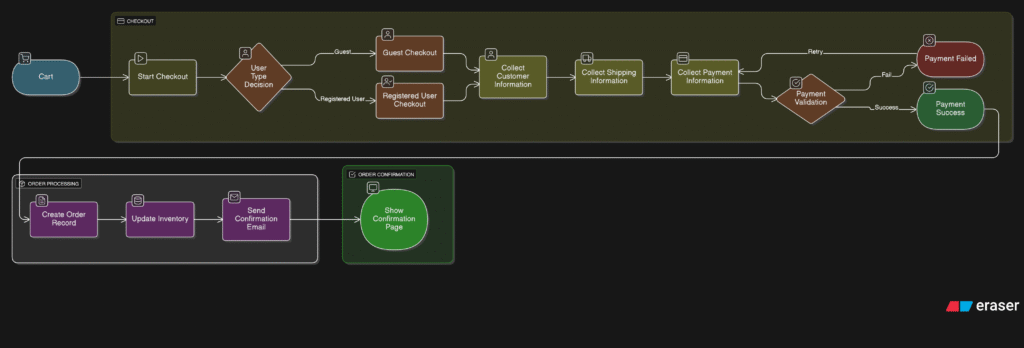
AI Data Flow Diagram Generator
What I Tried: “Create a data flow diagram for my e-commerce checkout process showing how data moves from cart to order confirmation.”
My Experience:
I needed to optimize my checkout flow and wanted to see where data was going. This data flow diagram generator AI helped me visualize everything! The DFD generator created a Level 0 DFD first (high-level view), and then I asked for Level 1 (detailed view).
What the data flow diagram maker showed me was really insightful:
- Customer data flows from Cart to Order Processing
- Inventory Database gets checked before confirming order
- Payment data goes to external Payment Gateway (shown as external entity)
- Order confirmation data flows back to Customer and also to Email Service
I actually found a bottleneck in my flow – I was checking inventory AFTER taking payment! The data flow diagram helped me see this issue clearly. Now I’ve restructured my flow to check inventory first. This tool literally improved my business logic!
My Rating: 8.5/10
Great for process optimization
When I’ll Use This Again:
- Analyzing data bottlenecks
- GDPR compliance documentation
- API data flow planning
- Security audit preparations
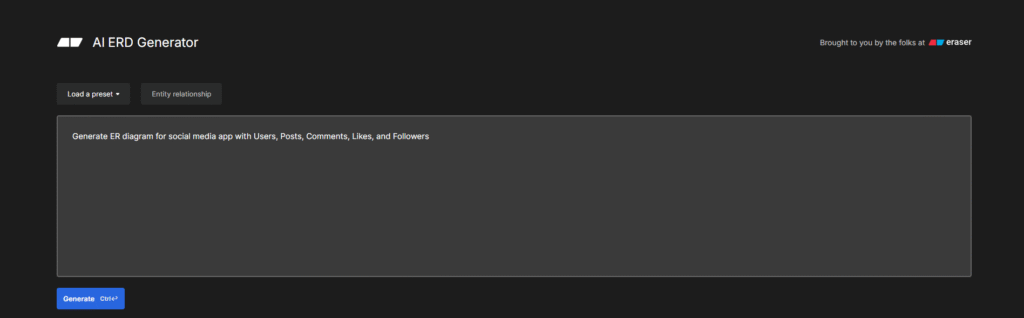
AI ERD Generator
What I Tried:
“Generate an ER diagram for a social media app with users, posts, comments, likes, and followers.”
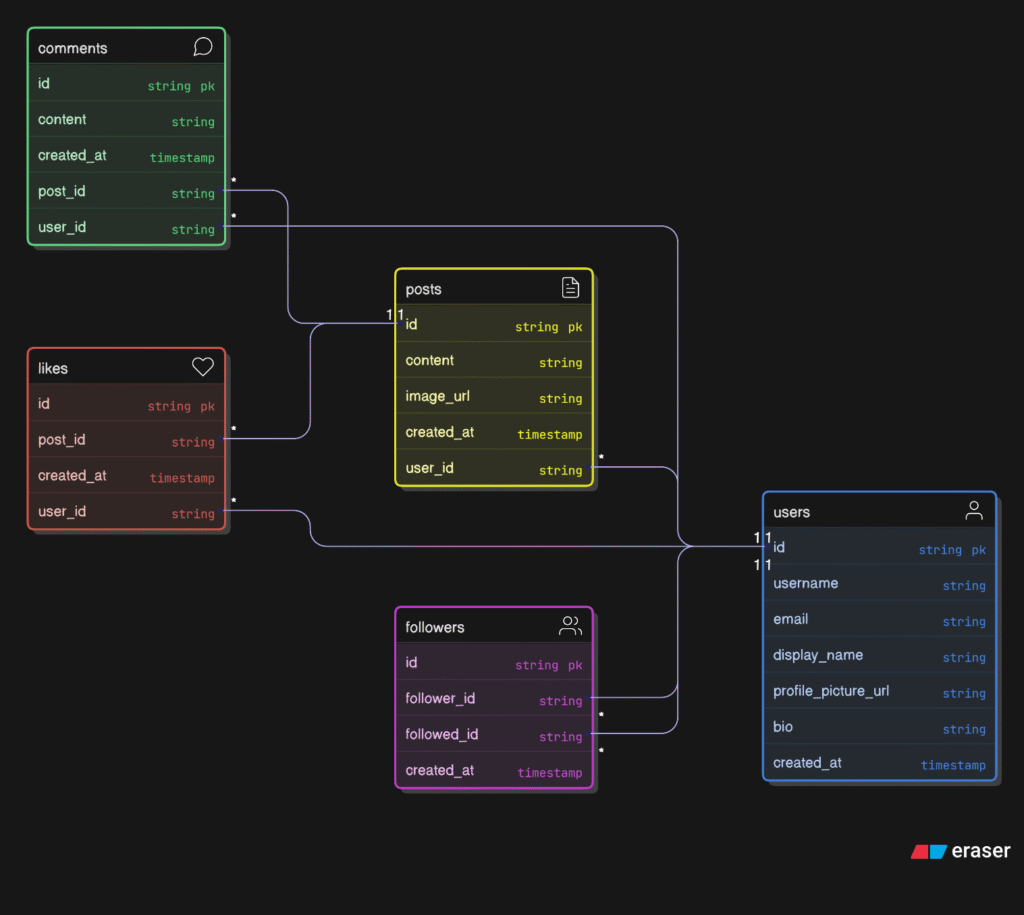
My Experience: This ERD maker is incredible for database design! I’m building a social media app and needed to plan my database structure. I just described my entities, and the ER diagram generator created a complete ERD with all relationships.
What I loved:
- It automatically added proper primary keys (user_id, post_id, etc.)
- Showed that User → Post is one-to-many (one user creates many posts)
- Understood that Likes is a many-to-many relationship (many users like many posts)
- Added junction table for Followers (User follows User self-referencing)
The ERD diagram generator even suggested additional fields I hadn’t considered, like created_at and updated_at timestamps. When I showed this to my database admin friend, he said, “This is properly normalized and follows best practices!”
I used the CREATE ERD output to directly write my SQL CREATE TABLE statements. Saved me hours of database design work.
My Rating: 10/10
Must-have for database design
When I’ll Use This Again:
- Every new project’s database planning
- Database migration planning
- Explaining schema to team
- Client database discussions
- Interview preparation
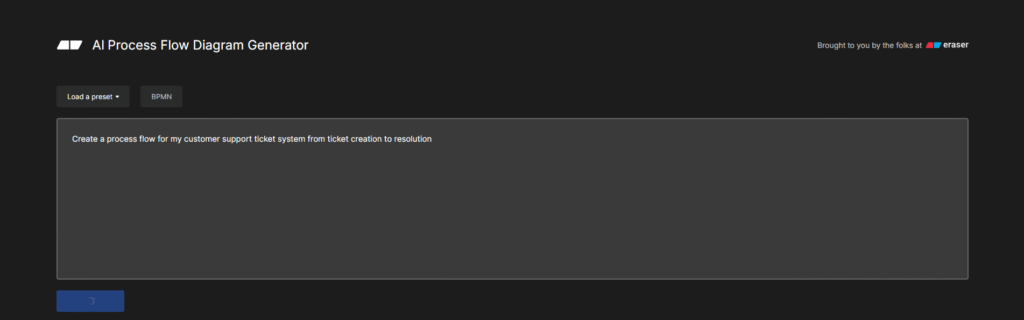
AI Process Flow Diagram Generator
What I Tried: “Create a process flow for my customer support ticket system from ticket creation to resolution.”
My Experience:
I run a small SaaS business and needed to document our support process. The AI process flow generator made this super easy! I described our support workflow, and it created a process flow diagram with swim lanes for different teams (Support Team, Development Team, Customer).
The process flow diagram showed:
- Customer submits ticket → Support Team receives
- If technical issue → Escalate to Dev Team
- If simple query → Support resolves directly
- Dev team fixes → Support informs customer
- Customer confirms → Ticket closed
What’s brilliant is the process flow generator added decision points I had verbally mentioned. Like “Is this a bug or feature request?” automatically became a decision diamond in the flow.
I printed this and put it on our office wall. Now every support team member follows the same process. No more confusion about when to escalate or who handles what!
My Rating: 9/10
Perfect for business documentation
When I’ll Use This Again:
- Onboarding new team members
- Process improvement meetings
- SOP documentation
- Client process presentations
AI PlantUML Editor
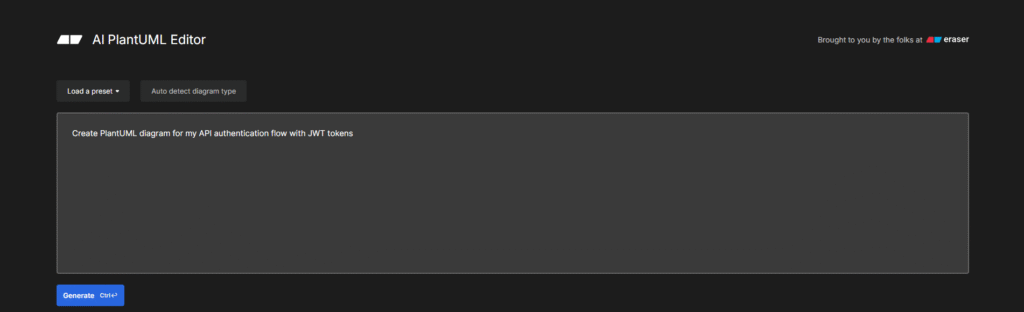
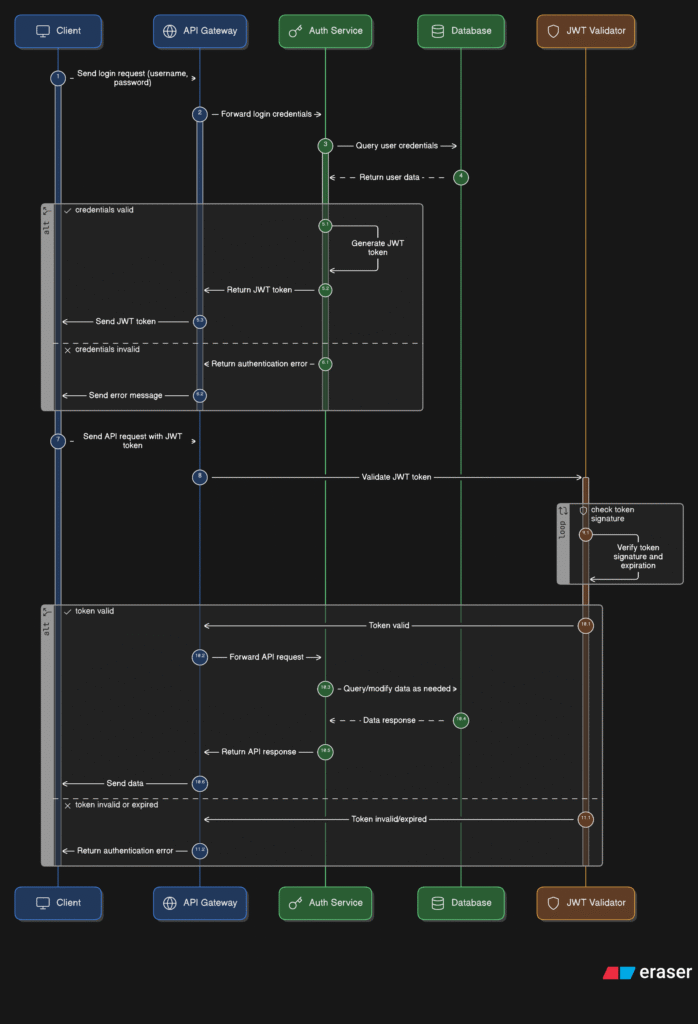
What I Tried: “Create PlantUML diagram for my API authentication flow with JWT tokens.”
My Experience:
I’m documenting my API, and I know many developers prefer PlantUML for technical docs. This PlantUML online tool is perfect! I described my authentication flow, and it generated clean PlantUML code.
The output was proper PlantUML syntax:
@startuml
User -> API: POST /login
API -> Database: Verify credentials
Database –> API: User data
API -> API: Generate JWT
API –> User: Return token
@enduml
What’s great about this online PlantUML editor is that I can use the code directly in:
- Confluence pages
- GitHub wikis
- My API documentation site
- Technical blog posts
I tested it with class diagrams, sequence diagrams, and component diagrams, and all worked perfectly. The PlantUML generator understands technical terminology really well.
My Rating: 9/10
Essential for developer documentation
When I’ll Use This Again:
- API documentation
- System design docs
- Technical blog posts
- Code documentation
- Architecture decision records
AI Sequence Diagram Generator
What I Tried:
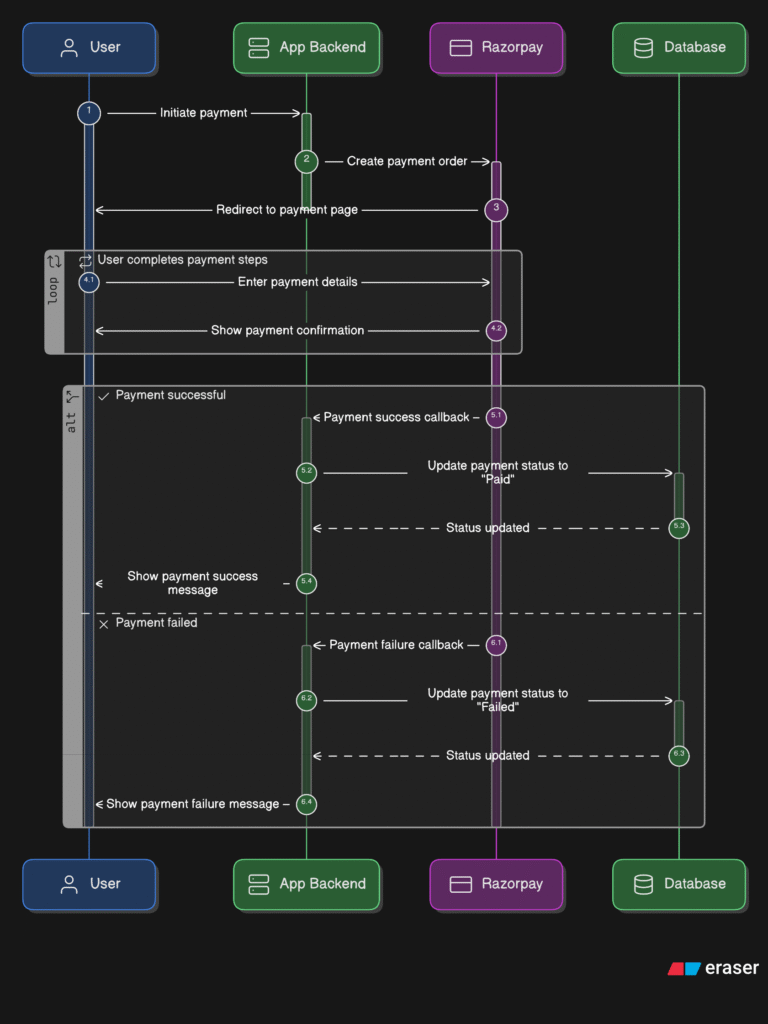
“Generate a sequence diagram for payment processing in my app: the user initiates payment, goes to Razorpay, gets confirmed, and updates the database.”
My Experience: This sequence diagram generator is now my favorite tool for API planning! Before writing any API code, I create sequence diagrams to visualize the flow. The sequence diagram maker understands time-based interactions perfectly.
For my payment flow, it created:
- Vertical lifelines for: User, Frontend, Backend, Razorpay, Database
- Arrows showing: initiatePay() → createOrder() → processPayment() → confirmPayment()
- Return arrows showing responses
- Activation boxes showing when each component is active
- Alt frame for success/failure scenarios
What impressed me was the sequence diagram creator automatically added error handling. It showed, “If payment fails, → show error → redirect to payment page.” ” I hadn’t even mentioned error cases!
I now create sequence diagrams before writing any complex feature. It helps me think through the complete flow and catch issues early.
My Rating: 10/10
Essential for API development
When I’ll Use This Again:
- Before implementing any API
- Code review discussions
- Bug investigation
- Performance optimization planning
- Team knowledge sharing
AI Network Diagram Generator
What I Tried:
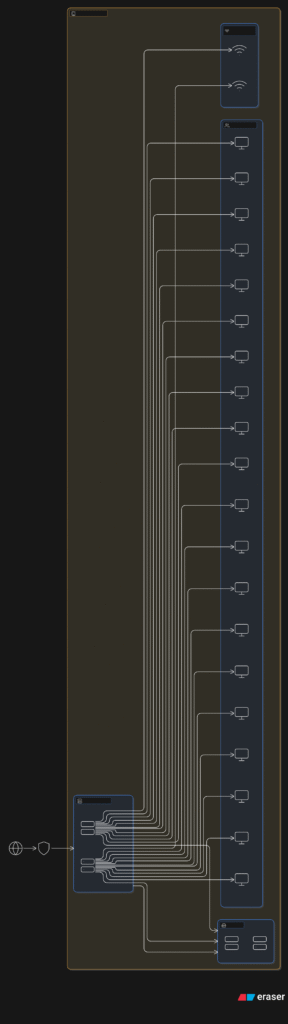
“Create a network diagram for my startup office with 2 servers, WiFi access points, a firewall, switches, and 20 workstations.”
My Experience: I’m setting up office infrastructure and needed to plan the network layout. This AI network diagram generator made it so visual! The network diagram maker created a professional topology diagram that I could show to my network vendor.
The network diagram generator showed:
- Internet connection → Firewall → Main Router
- Router connected to Switch
- Switch connecting to: Web Server, Database Server, NAS Storage
- Separate WiFi Access Points for office
- Different VLANs for Admin and Guest networks
- IP addressing scheme (192.168.1.0/24)
My network vendor looked at this and said, “This is exactly what I needed to give you a quote!” The free AI network diagram generator saved me consultation fees because I came prepared with a clear network design.
I also used it to document our existing network for troubleshooting purposes. When something goes wrong, I can quickly refer to the diagram.
My Rating: 9/10
Perfect for IT planning
When I’ll Use This Again:
- Office network expansion
- Security audit documentation
- Troubleshooting network issues
- Vendor communication
- Disaster recovery planning
AI Org Chart Generator
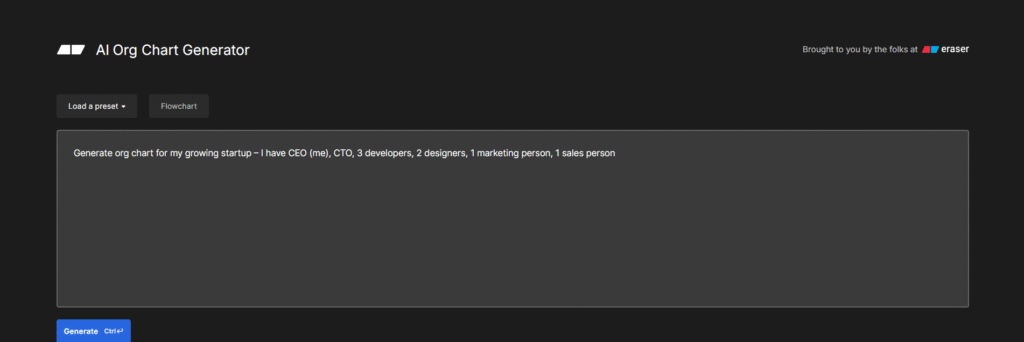
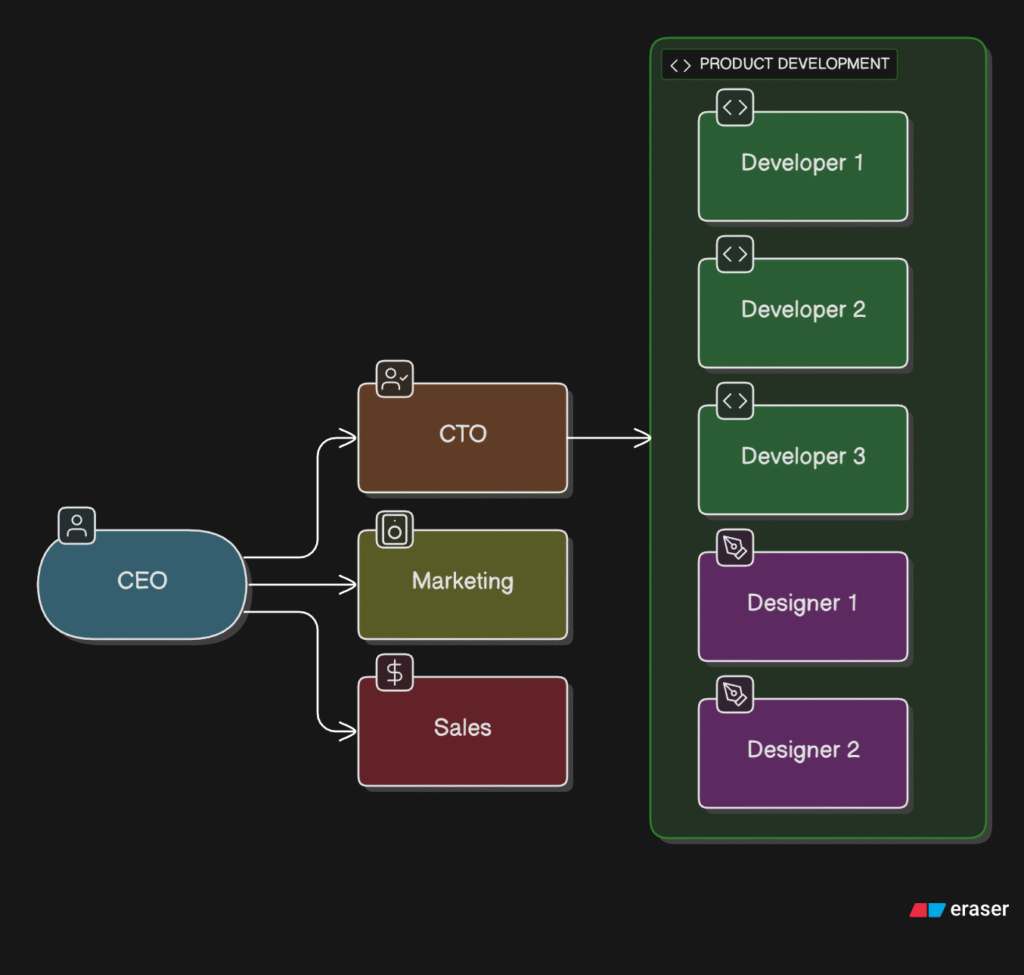
What I Tried: “Generate an org chart for my growing startup. I have a CEO (me), a CTO, 3 developers, 2 designers, 1 marketing person, and 1 salesperson.”
My Experience:
My startup is growing, and I needed to visualize our team structure for investor presentations. The org chart generator made this super professional! The organizational chart maker created a clean hierarchy diagram.
What the organizational chart creator showed:
- Me (CEO) at top
- CTO reporting to me with the engineering team below (Tech Lead → Senior Devs → Junior Dev)
- Marketing & Sales reporting to me
- Design team under CTO
I customized it to add names, photos, and email addresses. Now I use this organizational chart generator for:
- Investor pitch decks (shows we have proper structure)
- New employee onboarding (they know who reports to whom)
- Planning future hires (where do we need people?)
I also created a “future state” org chart showing where I want to be in 6 months. This helps me plan hiring and budget.
My Rating: 8.5/10
Great for HR and planning
When I’ll Use This Again:
- Monthly team structure reviews
- Hiring planning sessions
- Investor presentations
- Employee onboarding
- Succession planning
AI Block Diagram Generator
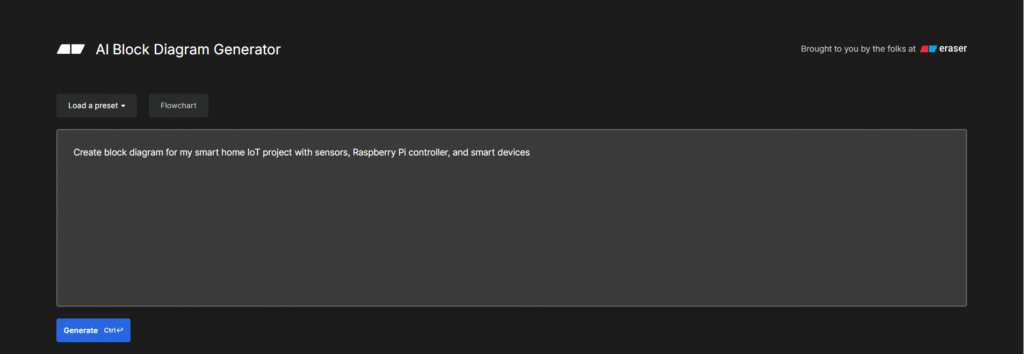
What I Tried:
“Create a block diagram for my smart home IoT project with sensors, a Raspberry Pi controller, and smart devices.”
My Experience:
I’m building a home automation system and needed a simple overview diagram for my blog post. The block diagram generator made it super clean! Unlike complex architecture diagrams, block diagrams are simple rectangles with arrows. perfect for explaining concepts.
My block diagram showed:
- Input: Temperature Sensor, Motion Sensor, Light Sensor
- Processing: Raspberry Pi → Home Assistant → Rules Engine
- Output: Smart Lights, AC Control, Security System
- Cloud: AWS IoT Core for remote access
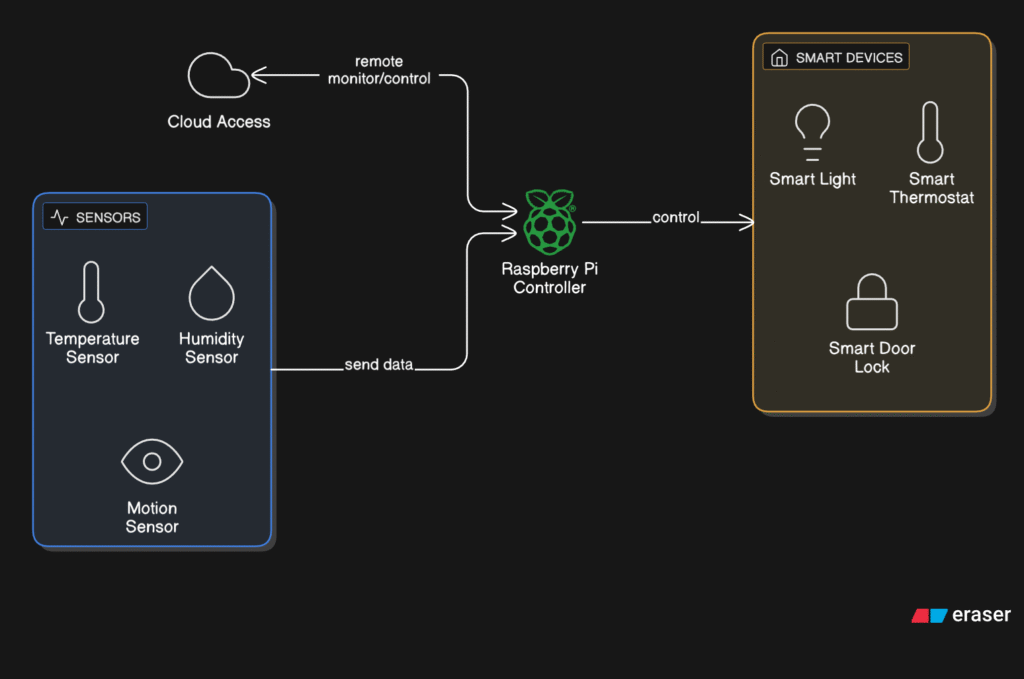
What I like about block diagrams is they’re not technical – my mom understood my project just by looking at it! The code block diagram style is perfect for high-level explanations.
I used this for:
- My blog post about the project
- Presentation to friends interested in IoT
- Planning additional sensors
- Explaining to electrician what I need
My Rating: 8/10
Perfect for simple overviews
When I’ll Use This Again:
- Blog posts and tutorials
- Project planning
- Client presentations (non-technical)
- Educational content
- Quick concept sketches
My Personal Summary After Testing Everything
Total Tested: All 13 tools ✓
My Top 3 Favorites:
- Architecture Diagram Generator – I use this almost daily for system design
- Sequence Diagram Generator – Can’t code complex features without this now
- ERD Generator – Saved me countless hours in database design
I Use Weekly:
- Flowchart maker ai – For documenting processes
- Mermaid ai – For GitHub documentation
- UML diagram generator – For code planning
Tools I Use Monthly:
- Use case diagram creator – Client requirement meetings
- Process flow generator – Business process documentation
- Org chart generator – Team planning
Tools I Use As Needed:
- Data flow diagram maker – When optimizing data flows
- Network diagram generator – Infrastructure planning
- PlantUML – Technical documentation
- Block diagram – Blog posts and presentations
What I Learned
Time Saved
These tools save me approximately 10-15 hours per week! Previously, I’d spend hours in draw.io or Lucidchart making diagrams manually.
Quality Improved
The AI understands best practices. My diagrams are now more professional and follow standard notations.
Communication Better
I can now quickly create diagrams to explain ideas to my team, clients, and stakeholders. Visual communication is so much more effective!
Documentation Habit
Because it’s so easy, I actually document more. Previously, I’d skip documentation because creating diagrams was tedious.
My Honest Issues Found:
- Sometimes Needs Iteration: Complex scenarios might need 2-3 prompts to get exactly what I want
- Internet Required: Can’t use offline (but that’s okay for me)
- Learning Curve for Prompts: First few attempts, my prompts weren’t specific enough
My Tips for Others:
- Be Specific: Instead of “create flowchart,” say “create flowchart for user login with email verification and 2FA.”
- Mention Components: List out all entities, actors, or components you need
- Iterate: Don’t expect perfection on the first try. Regenerate with more details
- Save Good Prompts: I keep a note of prompts that worked well for reuse
- Use Right Tool: Don’t use architecture diagram when you need simple block diagram
Which Tool for What?
I am planning a new feature:
- Start with a use case diagram (understand requirements)
- Then UML Diagram (design classes)
- Then Sequence Diagram (design API flows)
- Then Architecture Diagram (overall system design)
I’m documenting for the team:
- Flowchart for processes
- Mermaid for code documentation
- ERD for database
- Network diagram for infrastructure
I’m presenting to clients:
- Block diagram (high-level overview)
- Process flow (business processes)
- Org chart (team structure)
- Architecture diagram (technical capability)
My Thoughts
These 13 AI diagram generators have genuinely transformed how I work. I’m more productive, my documentation is better, and communication with the team and clients has improved significantly.
Would I Recommend? Absolutely YES! Whether you’re:
- Developer: Use Architecture, UML, Sequence, Mermaid
- Business Person → Use Flowchart, Process Flow, Org Chart
- IT Professional → Use Network, Block, Architecture
- Student/Teacher: Use all of them for learning!
My Overall Rating: 9.5/10
The 0.5 deduction is only because sometimes I need to iterate prompts. But honestly, that’s a minor issue compared to the massive time savings and quality improvement.
My recommendation: Try the flowchart maker ai first. It’s the easiest to understand, and you’ll immediately see the value. Then explore others based on your needs.
Eraser.io Pricing Plans (2026)
| Feature | Free | Starter ($10/user/mo) | Business ($25/user/mo) |
| Files | 3 | Unlimited | Unlimited |
| AI Credits (per user/mo) | 5 (4 standard, 1 premium) | 40 (30 standard, 10 premium) | 250 (200 standard, 50 premium) |
| Guests | Unlimited | Unlimited | Unlimited |
| Version History | 7 days | 90 days | Unlimited |
| GitHub Integration | ✔️ | ✔️ | ✔️ |
| Private Files | ❌ | ✔️ | ✔️ |
| SAML SSO | ❌ | ❌ | ✔️ |
| API Access | ❌ | ✔️ | ✔️ |
| Usage-Based Pricing | ❌ | ✔️ | ✔️ |
Disclaimer: I have given this price only for information and for the user’s real information. Please note that the price may change in the future.
Enterprise Plan
For larger organizations requiring unlimited AI usage, custom deployment options, dedicated support, or single-tenancy, Eraser offers custom enterprise plans. Contact their sales team for pricing.
Free Plan Details
The free plan is perfect for individuals and small teams getting started. You can:
- Create up to 3 files
- Generate 5 AI diagrams or edits per month
- Invite unlimited guests
- Access 7 days of version history
- Connect with GitHub
AI Credits Explained
- Standard AI Credits: Used for basic diagram generation and editing
- Premium AI Credits: Used for advanced features like image-to-diagram conversion and codebase analysis
Paid plans offer usage-based pricing, allowing you to extend beyond plan limits at $20 per 100 standard credits and $60 per 100 premium credits.
Pros and Cons
Pros ✅
- Lightning-Fast Diagram Generation – Create complex diagrams in seconds instead of hours
- Technical Focus – Built specifically for engineering teams with understanding of technical terminology
- Flexible Input Methods – Supports natural language, code, images, and manual editing
- Diagram-as-Code – Enables version control and automation of diagrams
- Excellent GitHub Integration – Automatically sync diagrams with your codebase
- Real-Time Collaboration – Seamless multi-user editing with no lag
- Generous Free Plan – 5 AI generations monthly is perfect for testing
- High-Quality Output – AI-generated diagrams are clean, logical, and professional
- Multiple Export Formats – Easy sharing and presentation options
- No Data Training – Your data is never used to train AI models (privacy-focused)
Cons ❌
- Limited Diagram Types – Missing some specialized diagrams like mind maps and Gantt charts
- Learning Curve – Diagram-as-code syntax requires time to master for non-technical users
- AI Credit Limits – Free plan’s 5 credits can run out quickly for active users
- Occasional Layout Issues – AI-generated diagrams sometimes need manual adjustment for perfect visual balance
- Limited Native Integrations – Fewer integrations with Google Workspace and Microsoft Office compared to competitors
- Price for Teams – Can become expensive for larger teams compared to traditional tools
- Generic AI Outputs – Sometimes generates overly generic labels requiring manual refinement
Who Should Use Eraser.io?
Perfect For:
Software Engineers & Architects If you regularly create system architecture diagrams, database schemas, or technical documentation, Eraser.io will save you hours every week.
DevOps teams are perfect for creating and maintaining cloud infrastructure diagrams that automatically sync with your infrastructure-as-code.
Technical Product Managers Quickly visualize product workflows, system designs, and technical requirements for stakeholder presentations.
Engineering teams collaborate on technical designs in real-time and maintain living documentation that stays up-to-date with your codebase.
Tech Startups: The generous free plan and scalable pricing make it ideal for startups that need professional technical documentation on a budget.
Not Ideal For:
Non-Technical Teams If your team doesn’t work with code or technical systems, traditional tools like Lucidchart might be more intuitive.
Marketing/Sales Teams Lacks marketing-specific diagram types and may be overly complex for simple flowcharts.
Budget-Conscious Large Teams Per-user pricing can add up quickly for large organizations compared to flat-rate tools.
Eraser.io vs. Competitors
Eraser.io vs. Lucidchart
Winner: Depends on Use Case
- Eraser.io: Better for technical teams, offers AI generation, diagram-as-code, GitHub integration
- Lucidchart: More intuitive for non-technical users, broader diagram type support, better Microsoft/Google integrations
Eraser.io vs. Draw.io
Winner: Eraser.io
- Eraser.io: AI-powered, collaborative, modern interface, real-time sync
- Draw.io: Free, works offline, but lacks AI features and modern collaboration tools
Eraser.io vs. Miro
Winner: Depends on Need
- Eraser.io: Specialized for technical diagrams, better for documentation
- Miro: Better for brainstorming and creative collaboration, more general-purpose
Eraser.io vs. PlantUML
Winner: Eraser.io
- Eraser.io: AI-assisted, visual editor available, modern collaboration
- PlantUML: Free, pure code-based, but steeper learning curve and no AI assistance
Real User Reviews
Based on reviews from Product Hunt, DEV Community, and other platforms, here’s what actual users are saying:
Positive Feedback
⭐⭐⭐⭐⭐
“DiagramGPT might be the tool I’ve been truly missing my whole dev life. Diagrams are so useful when communicating to an audience, but they are a huge time sucker and a pain to keep up to date.”
“I’ve recently started using eraser.io, and it’s simply delightful: the best of Graphviz and Figma and code-to-diagrams in a neat UI.”
“This tool has completely transformed the way I work by allowing me to generate ER diagrams and system architecture efficiently. What impressed me the most was how fast and efficient it was.”
“We’re using Eraser for our client work at LoudFace, and it’s been a game-changer. It saves our developers so much time on documentation and even initial technical planning for projects.”
Constructive Criticism 💭
“Tried it out for a microservices architecture diagram, and it actually nailed most of it. Clean, readable layout; the flow made sense out of the box. Some of the visual balance felt a bit off, and the services were super generic, but for quickly sketching out an idea, it definitely helped.”
“It is such a great tool; I use it nearly every day, but I wish it had more diagram options like a mind map.”
Users consistently praise the speed, AI accuracy, and time-saving benefits, while noting that some manual refinement is often needed for production-ready diagrams.
Why Should You Trust Me?
I’ve been working in the technology industry since 2014, with extensive experience in software development, technical documentation, and engineering team management. Over the past three years, I’ve specifically focused on AI-powered tools and their practical applications for technical teams.
I’ve personally tested dozens of diagramming tools, including Lucidchart, Draw.io, Miro, PlantUML, and Mermaid. I use diagramming tools daily for system architecture design, database schema planning, and technical documentation.
For this review, I spent over two weeks extensively testing Eraser.io across different use cases, comparing it with competitors, and gathering feedback from my engineering team. All opinions in this review are based on hands-on experience and real-world testing.
Conclusion
So, is Eraser.io a good AI diagram tool in 2026? Absolutely, especially for technical teams.
Eraser.io excels at what it was designed to do: help engineering teams create high-quality technical diagrams quickly and efficiently. The AI-powered generation is genuinely impressive, saving hours of manual work. The diagram-as-code approach, GitHub integration, and real-time collaboration make it a powerful tool for modern development teams.
My recommendation:
- Try the Free Plan if you’re an individual developer or small team
- Upgrade to Starter ($10/user/mo) if you create diagrams regularly
- Choose Business ($25/user/mo) for teams needing advanced collaboration and security
- Consider alternatives if you need non-technical diagrams or are a large non-technical team
The tool isn’t perfect -it lacks some diagram types and occasionally produces generic outputs that need refinement. However, for technical documentation and engineering diagrams, it’s currently one of the best AI-powered options available.
Have you tried Eraser.io or DiagramGPT? How has your experience been with AI diagram generation? Do you have any other diagram tools you’d recommend? Share your thoughts in the comments below!